Best Voice to Text Apps for Windows in 2026
Compare the best voice-to-text apps for Windows in 2026, including SpeakToText, Wispr Flow, Superwhisper, Aqua, Willow, Dragon, Windows Voice Typing, Dictation.io, Voice In, and Whisper-based tools.
Quick answer
The shortest useful answer,before the deep dive.
If you want the shortest answer: choose SpeakToText when you want one Windows app for voice-to-text, text-to-speech, translation, selected-text AI assistant actions, and transcript history.
Compare it against Wispr Flow, Superwhisper, Aqua, Willow, Dragon, Windows Voice Typing, Dictation.io, and Voice In. We removed meeting-note tools from this guide because they are a different buying lane.
Quick recommendation
Picture the real moment: you are on Windows, the idea is already in your head, and typing is the slow part. A plain dictation box helps a little. A fuller voice-to-text workflow helps more.
SpeakToText is strongest when you want voice-to-text, read-aloud text-to-speech, 100+ language voice typing, selected-text summarize/explain/rewrite/translate, transcript history, and a direct installer in one Windows product.
The closest modern alternatives to compare are Wispr Flow, Superwhisper, Aqua, and Willow. Dragon, Windows Voice Typing, Dictation.io, and Voice In are still useful references, but they solve narrower jobs.
- Choose SpeakToText if you want voice-to-text, text-to-speech, translation, AI assistant actions, transcript history, and Windows desktop workflow in one product.
- Choose Windows Voice Typing if you only need a free built-in option for short raw dictation.
- Choose Dragon if you need classic professional speech recognition and domain-specific dictation workflows.
- Choose Dictation.io or Voice In if most of your work happens inside Chrome or browser text fields.
Buyer story
The win is not dictation.It is fewer separate tools.
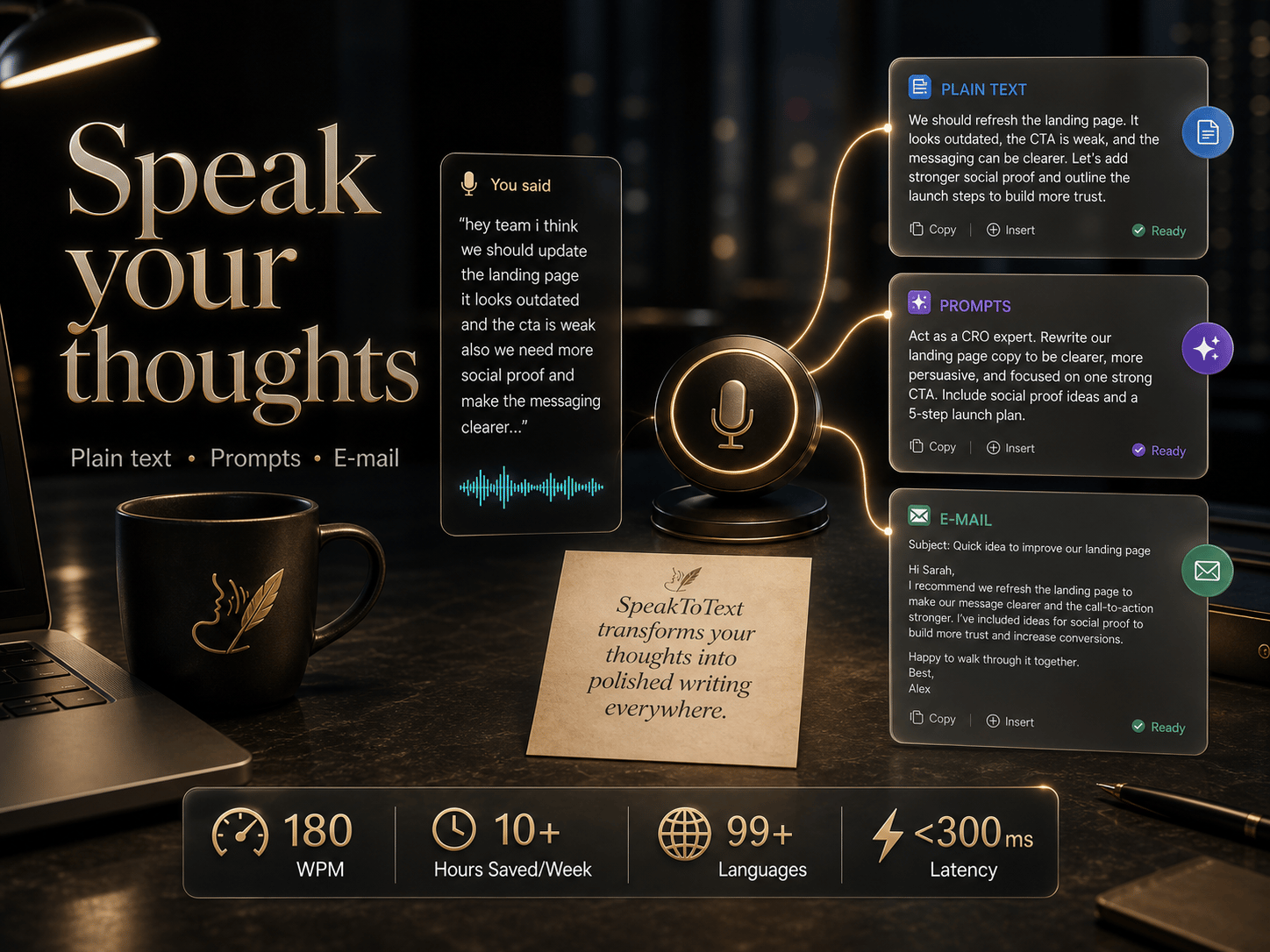
Voice-to-text
Speak, convert, keep writing in the active field.
Text-to-speech
Hear selected text aloud without changing tools.
Translate
Move selected text across languages quickly.
AI assistant
Summarize, explain, rewrite, and recover transcripts.
Voice-to-text app comparison for Windows
This is a buyer map, not a fake lab benchmark. It asks what the tool is best for, where it runs, and whether it covers raw dictation, AI dictation, translation, text-to-speech, or assistant-style actions.
Platform and feature notes are based on public product pages checked on June 24, 2026. Source links are listed near the end of this guide.
| Tool | Best for | Core strengths | Main tradeoff |
|---|---|---|---|
| SpeakToText | Voice-to-text, text-to-speech, translation, selected-text AI assistant actions, and transcript history on Windows | Voice typing in 100+ languages, read-aloud, summarize, explain, rewrite, translate, transcript recovery, Windows desktop workflow | Best current fit is Windows users who want more than raw dictation |
| Wispr Flow | Cross-device AI dictation with polished writing in many apps | Mac, Windows, iPhone, Android | Broad cross-platform product; compare pricing, controls, and privacy workflow for your team |
| Superwhisper | AI voice-to-text with offline/cloud recognition, custom modes, and advanced dictation controls | Mac, Windows, iOS | Powerful, but users may need to tune modes and model choices |
| Aqua | Fast AI dictation for Mac, Windows, iPhone, and AI workflows | Mac, Windows, iPhone | Strong speed positioning; evaluate workflow fit and privacy model |
| Willow | AI voice dictation for documents, messages, polished writing, and voice keyboard workflows | Windows and iOS public positioning | Good buyer-considered alternative; verify exact desktop capabilities before switching |
| Dragon | Professional and legal dictation, domain vocabulary, enterprise documentation | Windows/professional ecosystem | More traditional and professional; less focused on AI prompt-writing workflows |
| Windows Voice Typing | Free built-in short dictation on Windows | Built into Windows | Raw transcription baseline; less voice productivity depth, AI assistant action, or transcript recovery |
| Dictation.io / Voice In | Browser-based or Chrome-extension dictation | Works through Chrome/browser | Useful in browser fields; less native Windows app coverage |
| Whisper-based tools | Local or hybrid speech-to-text experiments, file transcription, and technical users | Can be powerful and private depending on the app | Often requires more setup and may not include TTS, translate, assistant actions, or polished Windows UX |
Feature coverage chart
Raw dictation is one bar. A full workflow needs more bars.
What to look for in a Windows voice-to-text app
A good Windows voice-to-text app should not only recognize words. It should help you create, transform, translate, hear, and recover text without juggling separate tools.
Raw dictation is the entry point. The stronger product is the one that also handles read-aloud, language translation, selected-text actions, AI cleanup, and transcript history.
- Voice-to-text quality: accurate speech recognition, punctuation, cleanup, and smooth Windows use.
- Text-to-speech: read selected text aloud without needing a second app.
- Translation: support for many languages and fast translate workflows.
- AI assistant actions: summarize, explain, rewrite, and translate selected text.
- Transcript recovery: previous outputs should be easy to find, copy, and reuse.
- Clear privacy posture: know when audio is captured, where processing happens, and what is stored.
Voice-to-text
The first job is still getting speech into text quickly.
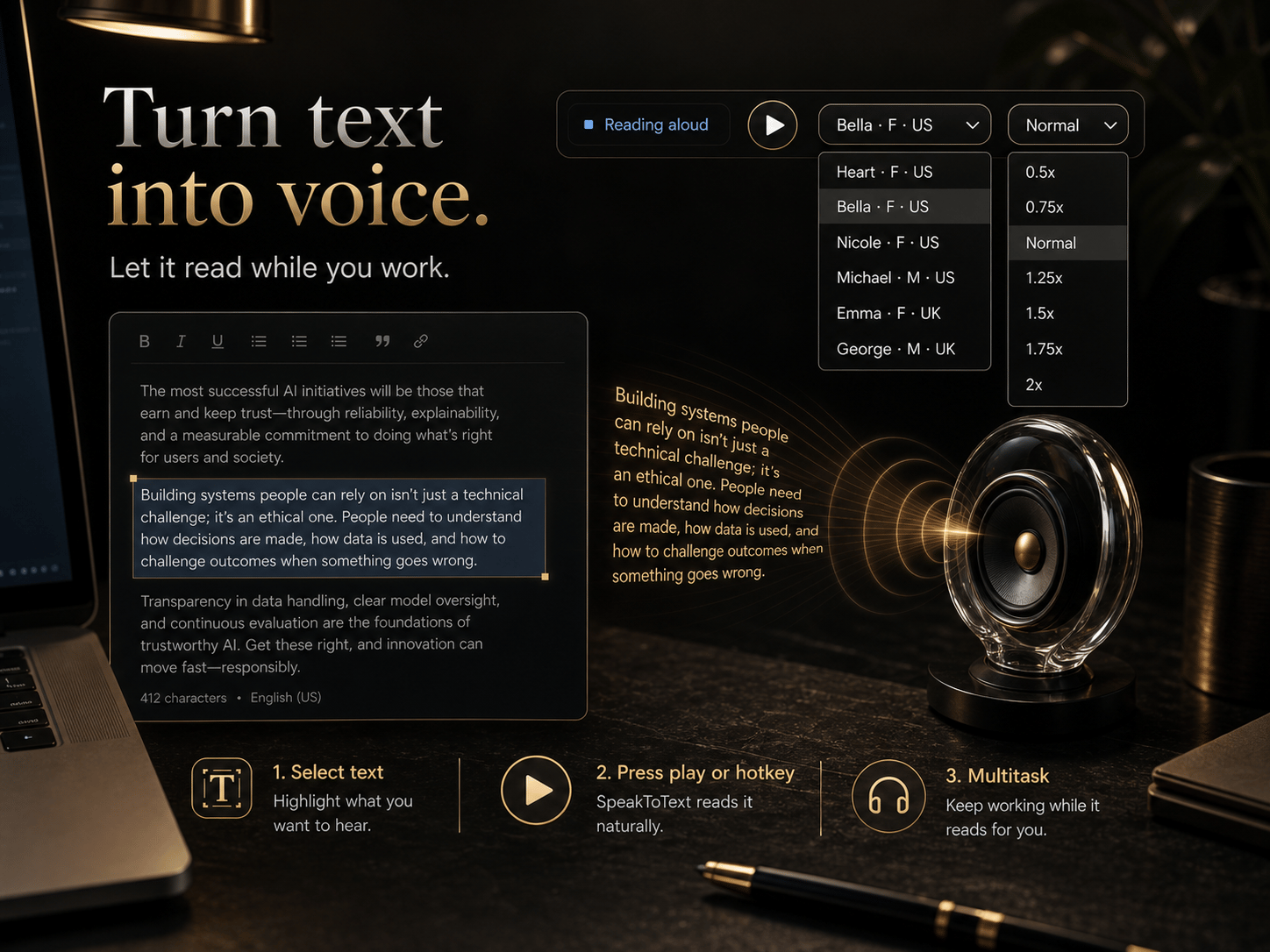
Text-to-speech
The second job is hearing important text back.
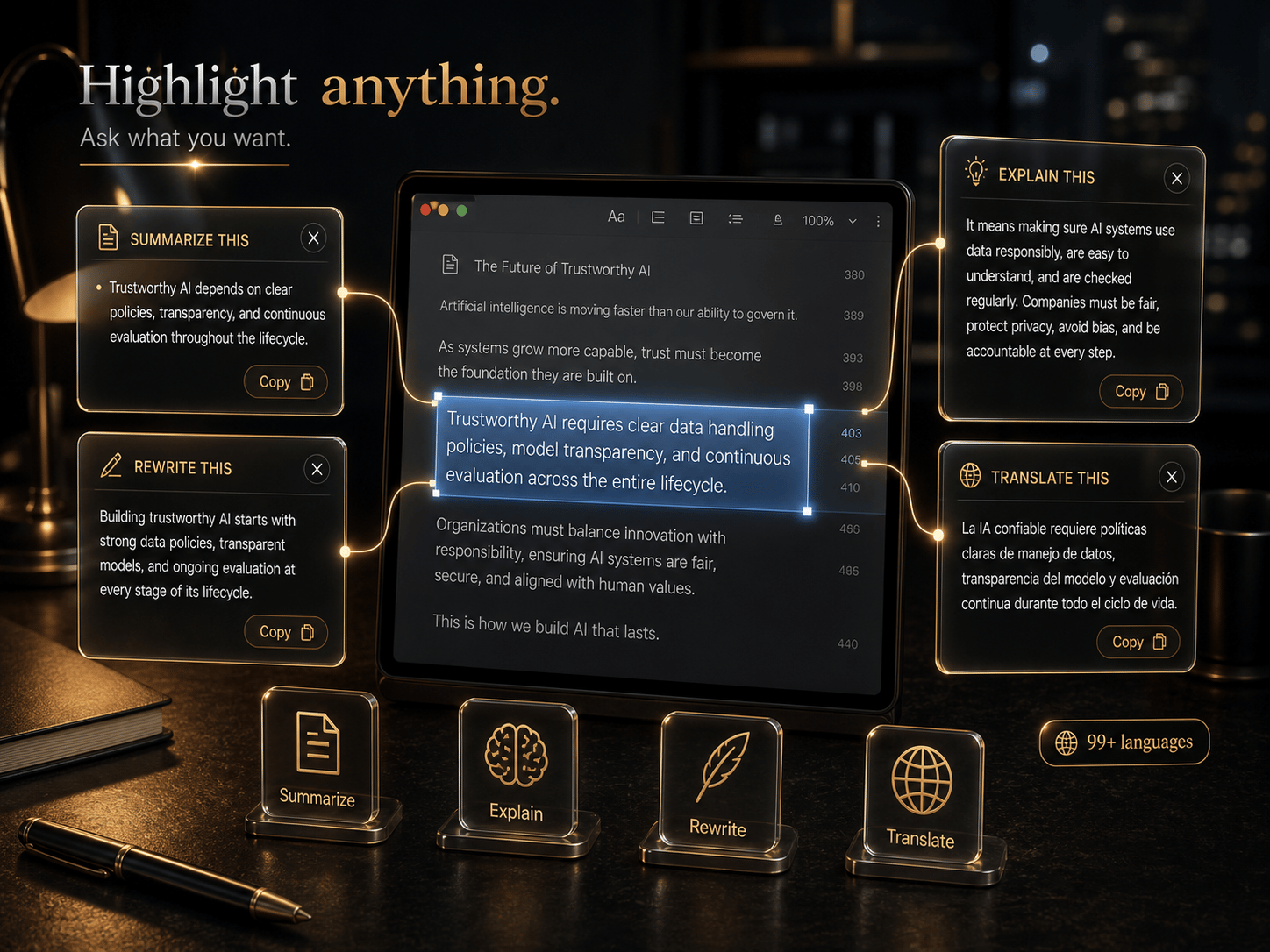
AI assistant
The third job is transforming selected text.
Best Windows voice-to-text workflow: SpeakToText
SpeakToText is built as a fuller voice productivity app for Windows. The core is voice-to-text, but the product is stronger because it also includes text-to-speech, translation, selected-text AI assistant actions, transcript history, and a Windows desktop workflow.
That matters because people do not only need raw speech converted into words. They need to dictate, translate, hear text aloud, summarize selected text, rewrite rough text, explain confusing text, and recover previous outputs.
The strongest reason to choose SpeakToText is that it combines these pieces in one product: voice-to-text, read-aloud, translate, AI assistant actions, transcript recovery, configurable microphone settings, and a floating Windows overlay.
- Windows launch product with a direct installer CTA.
- Voice-to-text with configurable capture controls and hands-free dictation mode.
- Text-to-speech read-aloud workflows.
- Voice typing in 100+ languages.
- Selected-text summarize, explain, rewrite, and translate.
- Floating overlay and configurable microphone/device settings.
- Transcript history with search, filters, copy, and export.
- Free plan includes weekly voice typing, read-aloud words, 100+ languages, and highlight actions.
- Premium adds much higher AI usage, premium studio voices, up to three devices, and priority support.
Modern AI dictation alternatives to compare
Wispr Flow, Superwhisper, Aqua, and Willow are the most useful modern comparison set because buyers looking at SpeakToText are searching for a faster way to write with voice.
Wispr Flow positions itself around effortless voice dictation and polished writing across Mac, Windows, iPhone, and Android. Superwhisper emphasizes AI voice-to-text for Mac, Windows, and iOS, including offline and cloud recognition, many languages, and custom AI modes. Aqua positions itself around fast, private dictation for Mac, Windows, iPhone, and AI workflows. Willow positions itself around fast dictation for documents, messages, and polished writing.
These tools are real competitors in buyer intent. The right page strategy is to compare workflow honestly instead of pretending only one product exists.
- Compare output behavior: raw transcript, polished text, translation, read-aloud, and selected-text actions.
- Compare platform fit: Windows-focused versus cross-platform.
- Compare privacy model: local, cloud, hybrid, and what is stored.
- Compare cost: free limits, monthly plan, annual plan, and whether heavy users need a higher tier.
Real competitor lane
Compare products that fight for the same habit.
Meeting-recording tools are not the right benchmark for this page. These are the products a voice-to-text buyer is more likely to compare.
Wispr Flow
Cross-device polished voice-to-text
Superwhisper
AI modes, local/cloud model choices
Aqua
Fast app-aware voice dictation
Willow
Voice typing across desktop and iPhone
Traditional and built-in options
Dragon still matters because many people search for the best dictation software with professional or legal documentation in mind. It is a different lane from AI prompt writing, but it is a common comparison for serious speech recognition buyers.
Windows Voice Typing is the built-in baseline. It is useful because it is free and already available on Windows, but it is not designed as a full voice productivity workflow with transcript recovery, selected-text AI assistant actions, translation workflows, or premium read-aloud.
Dictation.io and Voice In are useful browser options. They make sense when the work happens mostly in Chrome, web forms, Gmail, or browser-based documents. They are less direct if you want a native Windows desktop flow across more apps.
Why text-to-speech, translation, and AI assistant actions matter
A voice-to-text app becomes more useful when it can also work in the other direction. Text-to-speech lets you hear selected text aloud, review drafts by ear, and use the same product for reading workflows.
Translation matters because voice work is not always one language. A product with 100+ language voice typing and selected-text translate can cover more real work than a simple English-only dictation field.
AI assistant actions matter because selected text often needs a next step: summarize it, explain it, rewrite it, or translate it. Those actions are closer to productivity than raw transcription alone.
- Voice-to-text gets the words down.
- Text-to-speech reads text back.
- Translation moves text across languages.
- AI assistant actions transform selected text into something more useful.
Speak
Voice-to-text captures the thought.
Hear
Text-to-speech reads selected text aloud.
Translate
Language actions move text across contexts.
Transform
AI assistant actions make the text useful.
Which voice-to-text app should you choose?
Choose based on the workflow you repeat every day. If you only need short raw dictation, use the built-in Windows option. If you need professional domain dictation, compare Dragon. If you need a fuller voice productivity workflow, compare SpeakToText with Wispr Flow, Superwhisper, Aqua, and Willow.
For SpeakToText specifically, the strongest fit is a Windows user who wants voice-to-text, text-to-speech, translation, selected-text AI assistant actions, and transcript recovery in one product.
| Use case | Best category | Why |
|---|---|---|
| Turn speech into text on Windows | Voice-to-text app | You need accurate recognition, cleanup, and a smooth Windows workflow |
| Read selected text aloud | Text-to-speech app | You need the app to speak text back, not only create text |
| Translate selected text or multilingual speech | Voice-to-text with translation | You need language coverage and translate actions |
| Summarize, explain, rewrite, or translate highlighted text | AI assistant layer | You need the app to transform text, not only transcribe it |
| Do short free dictation | Built-in Windows Voice Typing | Good enough for simple messages when workflow polish is not needed |
| Dictate mostly in browser fields | Browser dictation or Chrome extension | Works well when most writing happens in web apps |
Decision map
Match the tool to the job. Do not buy features you will not use.
Need free short dictation
Windows Voice Typing
Need professional documentation
Dragon
Need browser-only typing
Dictation.io or Voice In
Need voice plus TTS, translate, AI actions
SpeakToText
Bottom line
The best voice-to-text app for Windows is the one that matches the whole job. For raw free dictation, start with Windows Voice Typing. For professional domain dictation, compare Dragon. For modern AI dictation, compare Wispr Flow, Superwhisper, Aqua, and Willow.
If you want voice-to-text, text-to-speech, 100+ language voice typing, translation, selected-text AI assistant actions, and transcript history in one Windows product, SpeakToText is designed for that lane.
Sourceschecked.
Competitor notes come from official product pages checked on June 24, 2026. We use them for platform and feature positioning, not as paid endorsements.
Questions,answered.
01What is the best voice-to-text app for Windows?
For short free dictation, Windows Voice Typing is a good baseline. For a fuller Windows voice-to-text workflow with text-to-speech, translation, selected-text AI assistant actions, and transcript history, SpeakToText is designed for that workflow. For professional documentation, compare Dragon.
02Is SpeakToText a Wispr Flow alternative?
Yes, for buyers comparing AI dictation and voice-to-text products. SpeakToText is focused on Windows voice-to-text, text-to-speech, translation, selected-text AI assistant actions, and transcript history.
03Is Superwhisper available on Windows?
Superwhisper publicly positions its product as AI voice-to-text for macOS, Windows, and iOS. Users should verify current Windows support, pricing, and mode behavior on Superwhisper’s official site before choosing.
04Does SpeakToText include text-to-speech?
Yes. SpeakToText includes read-aloud text-to-speech workflows, with Premium adding premium studio voices.
05Does SpeakToText support translation?
Yes. SpeakToText includes selected-text translate actions and voice typing in 100+ languages.
06Should I build backlinks to the download page?
No. For SpeakToText, the download route is a noindex fallback redirect to the installer. Backlinks should point to the homepage, pricing page, and high-quality content like this comparison guide.
07Why not just use Windows Voice Typing?
Windows Voice Typing is useful for short raw dictation. A fuller voice-to-text product is better when you need text-to-speech, translation, transcript recovery, selected-text AI assistant actions, and more workflow-specific output.